General Ledger GL Query Builder Designing a Report Query
Designing a Report Query with the GL Query Builder
This section will walk through the step by step creation of a simple report query, the printing of the query results and saving the report query design to a file. The end result of this sample report will be a list containing all A/P Bills entered for a particular Vendor during a specific accounting month. The primary sort for the report will be on the zip code field with a secondary sort on the city field. The report will only include a customer’s primary billing address.
1. Navigate to the General Ledger module from the Main Application Menu and select the GL Query Builder option.
2. The GL Query Builder Design form will be displayed. Expand the tree of the Register Data Group by pressing the “+” to the left of the Data Group or double-click on the Data Group name.
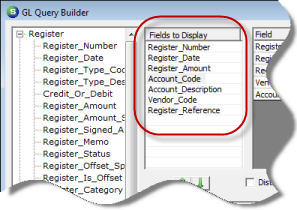
3. Drag and drop into the Fields to Display section or double-click on the following field names from the Register Data Group: Register_Date and Register_Amount.
Nest drag and drop into the Fields to Display section or double-click on the following field names from the Account Data Group: Account_Code and Account_Description.
Next drag and drop into the Fields to Display section or double-click on the following field names from the Reference Data Group: Vendor_Code and Register_Reference. The Register Reference will contain the Vendor Bill Number.
ss5200