General Ledger GL Query Builder Designing a Report Query
Designing a Report Query with the GL Query Builder (continued)
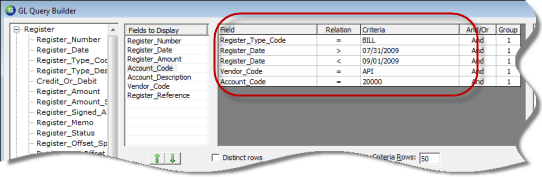
Next Filters will be added to the report query design; this example will use five filters.
4. For the first filter, drag and drop the Register_Type_Code field from the Register Data Group into the Filter area. The Relation field will default to “=”; do not change this selection. In the Criteria column select BILL from the drop-down list then press the tab key on the keyboard.
For the second filter, drag and drop the Register_Date field from the Register Data Group into the Filter area. Again the Relation field will default to “=”; change this selection to >. In the Criteria column type in 07/31/2009 then press the tab key on the keyboard.
For the third filter, drag and drop the Register_Date field from the Register Data Group into the Filter area. Again the Relation field will default to “=”; change this selection to <. In the Criteria column type in 09/01/2009 then press the tab key on the keyboard.
For the fourth filter, drag and drop the Vendor_Code field from the Reference Data Group into the Filter area. Again the Relation field will default to “=”; do not change this selection. In the Criteria column select ADI from the drop-down list then press the tab key on the keyboard. If ADI is not one of your Vendors, select a vendor_code that will probably have a high level of activity.
For the fifth filter, drag and drop the Account_Code field from the Account Data Group into the Filter area. Again the Relation field will default to “=”; do not change this selection. In the Criteria column select your company's Accounts Payable account number (typically 20000) from the drop-down list then press the tab key on the keyboard.
ss5201