General Ledger GL Query Builder Designing a Report Query
Designing a Report Query with the GL Query Builder (continued)
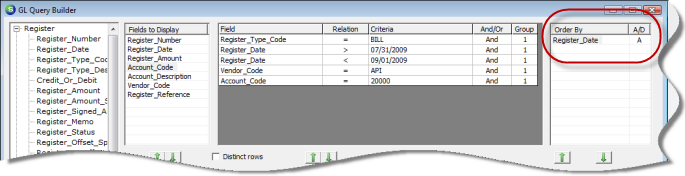
Next Filters will be added to the report query design; this example will use five filters.
5. Next a Sorting selection will be added to the report query design. Drag and drop the Register_Date field from the Register Data Group into the Sorting area.
ss5202
6. The report query design
is now complete. Next press the Refresh  button to return the requested data rows.
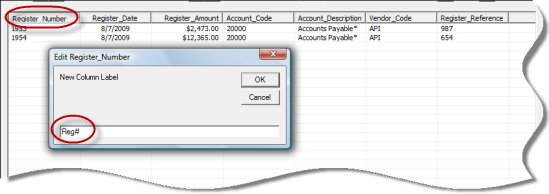
7. When a report query is printed, the column titles for each selected field will display and print the exact field name that was selected from the Data Groups. The User has the option of changing the field title names to be more presentable on a printed report.
To change a field name column header, in the Report Query Results area, double-click on the column title to be changed. An edit box will be displayed where the User will type in the words that will be displayed for the selected data field column. Press enter or the OK button to save. Any modifications made to column titles will be saved with the Report Query Design file.
ss5202-1